
 Home
Home  Apps
Apps  Games
Games  About Us
  Cookies & Privacy Policy
  Terms of Service
Blue Iris
Version: 3.0.46
Developer: Perspective Software
 Verified App
 Advertisement
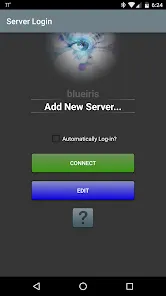
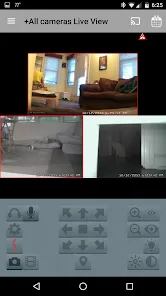
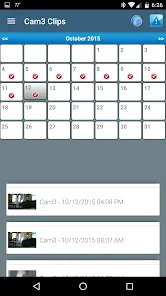
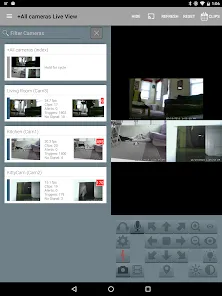
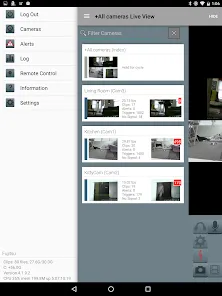
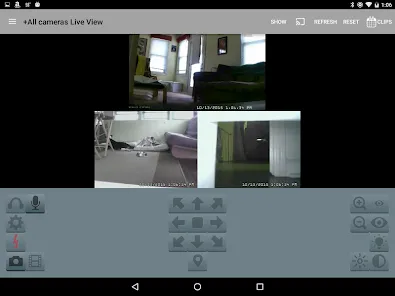
Blue Iris is a powerful video surveillance software designed for Windows, enabling users to monitor and manage multiple IP cameras and webcams seamlessly. With features like motion detection, alerts, and remote access, it provides a comprehensive security solution for homes and businesses. The intuitive interface allows for easy configuration and real-time viewing, ensuring users can keep an eye on their property from anywhere. Blue Iris combines advanced technology with user-friendly functionality for effective surveillance management.
Advertisement
Features of Blue Iris
Blue Iris is a powerful video surveillance software that offers a wide range of features designed for both home and business security. One of its standout features is the ability to support multiple camera types, including IP cameras, webcams, and analog cameras, allowing users to customize their surveillance setup according to their needs. The software also provides real-time monitoring, enabling users to view live feeds from their cameras on various devices, including smartphones and tablets.
Another notable feature is motion detection, which can trigger alerts and notifications when movement is detected in the camera's field of view. Users can also set up recording schedules, ensuring that footage is captured only when needed, thus saving storage space. Additionally, Blue Iris supports remote access, allowing users to manage their cameras and view footage from anywhere with an internet connection. The software also includes advanced features such as video analytics, which can help identify specific events or behaviors, enhancing overall security management.
How to Use Blue Iris
Using Blue Iris is straightforward, even for those who may not be tech-savvy. First, download and install the software on your Windows PC. Once installed, launch the application and begin by adding your cameras. This can be done by navigating to the 'Camera' tab and selecting 'Add Camera.' You will need to input the camera's IP address or select it from the list of detected devices.
After adding your cameras, configure the settings according to your preferences. This includes setting up motion detection zones, adjusting recording schedules, and enabling notifications. To view live feeds, simply click on the camera you wish to monitor. For remote access, ensure that your network settings are configured correctly, allowing you to connect via a mobile app or web browser. Regularly check for software updates to ensure you have the latest features and security enhancements, making your surveillance system as effective as possible.
Pros & Cons of Blue Iris
Blue Iris comes with several advantages that make it a popular choice for video surveillance. One of the primary pros is its versatility, as it supports a wide range of camera types and brands, making it suitable for various setups. The software's robust feature set, including motion detection, remote access, and customizable recording options, provides users with comprehensive control over their security systems. Additionally, the user-friendly interface makes it accessible for both beginners and experienced users.
However, there are some drawbacks to consider. One con is that Blue Iris is primarily designed for Windows, which may limit its usability for Mac or Linux users. Furthermore, while the software offers a wealth of features, it may require a learning curve for those unfamiliar with surveillance systems. Lastly, the initial cost of the software and potential additional expenses for camera hardware can be a consideration for budget-conscious users. Balancing these pros and cons is essential for anyone considering Blue Iris for their surveillance needs.
Check All Versions  Google Play
  App Store
Google Play App Store Top Apps





Similar Apps

Kodi
Video Players & Editors

3.6

CapCut - Video Editor
Video Players & Editors
3.4

AirMirror: AirPlay Receiver
Video Players & Editors
3.6
IPTV Extreme Pro
Video Players & Editors
3.8

IPTV Pro
Video Players & Editors
4.7

MX Player Pro
Video Players & Editors
4.3

Screen Recorder - Vidma Record
Video Players & Editors
4.5

StbEmu (Pro)
Video Players & Editors
3.6
TV Cast Pro for Android TV
Video Players & Editors
4.4
TV Cast Pro for Fire TV
Video Players & Editors
4.5
TV Cast Pro for LG webOS
Video Players & Editors
4.0
TV Cast Pro for Roku
Video Players & Editors
4.6
Advertisement
Laden…