
 Home
Home  Apps
Apps  Games
Games  About Us
  Cookies & Privacy Policy
  Terms of Service
AnyDesk Remote Desktop
Version: 7.0.0
Developer: AnyDesk Software GmbH
 Verified App
 Advertisement
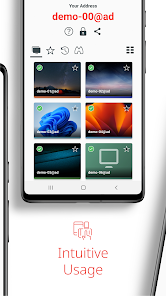
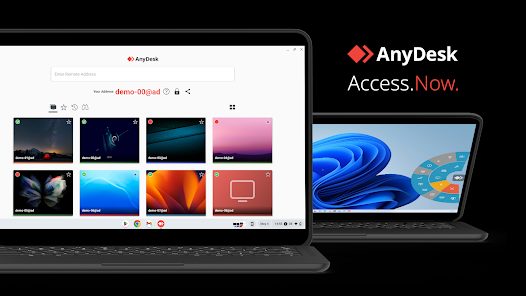
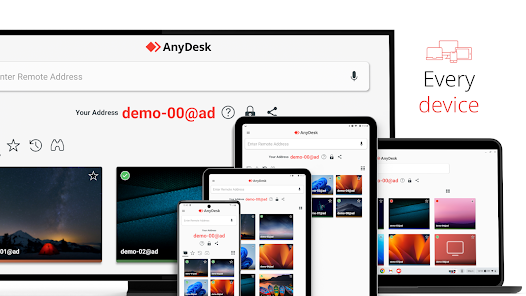
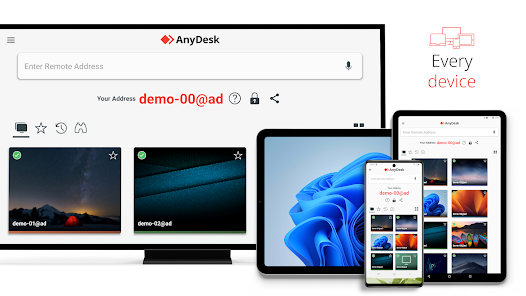
AnyDesk Remote Desktop is a powerful application designed for seamless remote access and control of computers from anywhere in the world. With its high-performance technology, it offers low latency and high-quality connections, making it ideal for both personal and professional use. Whether you need to provide technical support, collaborate with colleagues, or access files on the go, AnyDesk ensures a secure and efficient remote desktop experience, empowering users to stay connected and productive.
Advertisement
Features of AnyDesk Remote Desktop
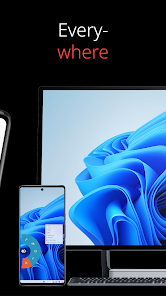
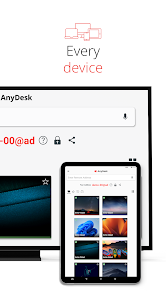
AnyDesk Remote Desktop is a powerful tool designed for remote access and support. One of its standout features is its low latency, which ensures smooth and responsive connections, even on slower internet connections. This is achieved through its proprietary DeskRT codec, which compresses and transmits image data efficiently. Additionally, AnyDesk supports cross-platform functionality, allowing users to connect from various devices, including Windows, macOS, Linux, Android, and iOS.
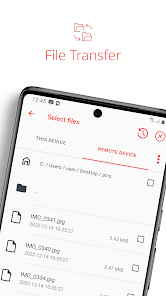
Another notable feature is the ability to transfer files seamlessly between devices. Users can drag and drop files or use the clipboard for easy sharing. Security is also a priority, with AnyDesk employing TLS 1.2 encryption and RSA 2048 asymmetric key exchange to protect user data. Furthermore, it offers session recording, which can be useful for training or auditing purposes. The intuitive user interface makes it easy for both novices and experienced users to navigate the application effectively.
How to Use AnyDesk Remote Desktop
Using AnyDesk Remote Desktop is straightforward and user-friendly. First, download and install the application on both the local and remote devices. Once installed, open the application, and you will see a unique AnyDesk ID displayed on your screen. To initiate a remote session, share this ID with the person you wish to connect with. They will enter your ID into their AnyDesk application to request access.
After the connection request is received, you will have the option to accept or decline it. Once accepted, you can control the remote device as if you were sitting in front of it. You can also adjust settings such as display quality and enable features like file transfer or clipboard sharing. For enhanced security, you can set up a password for unattended access, allowing you to connect to the remote device without needing someone on the other end to accept the request.
Pros & Cons of AnyDesk App
AnyDesk Remote Desktop comes with several advantages. One of its primary benefits is its exceptional performance, characterized by low latency and high-quality connections, making it suitable for various tasks, including graphic-intensive applications. The cross-platform compatibility allows users to connect from different operating systems, enhancing its versatility. Additionally, the file transfer feature is efficient, and the security measures in place provide peace of mind for users concerned about data protection.
However, there are some drawbacks to consider. While AnyDesk offers a free version, its features are limited compared to the paid plans, which may not be ideal for all users. Some users have reported occasional connection issues, particularly on slower networks. Furthermore, the user interface, while generally intuitive, may require a learning curve for those unfamiliar with remote desktop applications. Overall, AnyDesk is a robust solution, but potential users should weigh these pros and cons based on their specific needs.
 Google Play
  App Store
 Top Apps





Similar Apps
DoorDash - Dasher
Business

4.3

Duo Mobile
Business
4.5

Google Chat
Business
4.4

LinkedIn: Jobs & Business News
Business
4.2

Microsoft Authenticator
Business
4.6
Microsoft Teams
Business
4.7

Uber - Driver: Drive & Deliver
Business
4.6

TeamViewer Remote Control
Business
4.4

Slack
Business
4.7
Power Apps
Business
4.5

Zoom Workplace
Business
4.1

Workday
Business
4.3
Advertisement
Laden…