
 Home
Home  Apps
Apps  Games
Games  About Us
  Cookies & Privacy Policy
  Terms of Service
GIMP
Version:
Developer: UserLAnd Technologies
 Verified App
 Advertisement
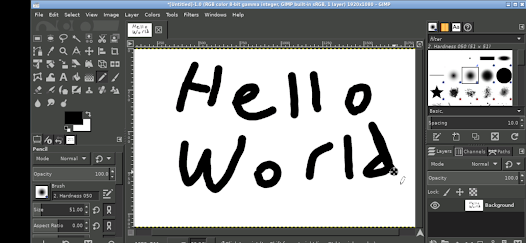
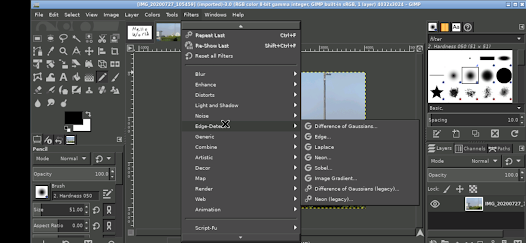
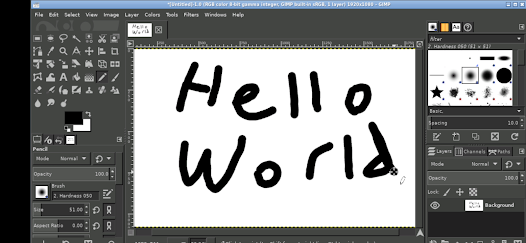
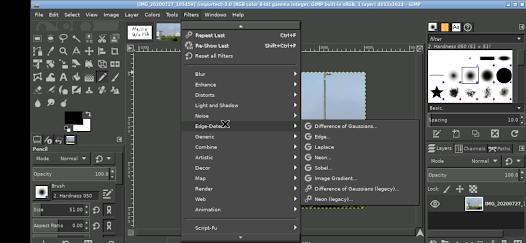
GIMP (GNU Image Manipulation Program) is a powerful, open-source image editing software designed for tasks such as photo retouching, image composition, and image authoring. With a customizable interface and a wide range of tools, GIMP caters to both beginners and advanced users. It supports various file formats and offers features like layers, filters, and plugins, making it a versatile alternative to commercial graphic design software. Whether for professional use or personal projects, GIMP provides extensive capabilities for creative expression.
Advertisement
Features of GIMP
GIMP, or GNU Image Manipulation Program, is a powerful open-source image editing software that offers a wide array of features suitable for both beginners and advanced users. One of its standout features is its extensive support for various file formats, allowing users to work with JPEG, PNG, GIF, TIFF, and many others. GIMP also provides advanced photo retouching tools, enabling users to enhance images with precision through features like healing brushes, clone tools, and layer masks.
Another notable feature is its customizable interface, which allows users to arrange toolbars and panels according to their preferences. GIMP supports layers and channels, making it easier to manage complex images. Additionally, it includes a variety of filters and effects that can be applied to images, enhancing creativity. The software also supports scripting and plug-ins, enabling users to extend its functionality further. Overall, GIMP is a versatile tool that caters to a wide range of image editing needs.
How to Use GIMP
Using GIMP effectively involves understanding its interface and tools. To get started, download and install GIMP from the official website. Once installed, launch the application, and you will be greeted with a user-friendly interface featuring a toolbox on the left and a canvas in the center. To open an image, navigate to the 'File' menu and select 'Open,' then choose the desired image file from your computer.
After opening an image, you can utilize various tools from the toolbox, such as selection tools, paint tools, and transformation tools. For instance, the 'Rectangle Select' tool allows you to select specific areas of the image for editing. You can also create new layers by going to the 'Layers' menu, which is essential for non-destructive editing. Once you have made your edits, save your work by selecting 'File' and then 'Export As' to choose the desired file format. With practice, you will become more proficient in using GIMP's extensive features.
Pros & Cons of GIMP
GIMP has several advantages that make it a popular choice among users. One of its primary benefits is that it is completely free and open-source, making it accessible to anyone without the need for expensive licenses. Additionally, GIMP offers a robust set of features comparable to professional software like Adobe Photoshop, including advanced editing tools, customizable brushes, and support for various file formats. The active community surrounding GIMP also contributes to a wealth of tutorials and plug-ins, enhancing the user experience.
However, GIMP is not without its drawbacks. Some users may find the interface less intuitive compared to other image editing software, which can lead to a steeper learning curve for beginners. Additionally, while GIMP supports many features, it may lack some advanced functionalities found in premium software, such as certain filters or 3D modeling tools. Lastly, performance can be an issue on lower-end hardware, especially when working with large files. Overall, GIMP is a powerful tool with both strengths and weaknesses that users should consider.
Check All Versions  Google Play
  App Store
Google Play App Store Top Apps




Similar Apps
FlipaClip: Create 2D Animation
Art & Design

4.4
AR Art Projector: Da Vinci Eye
Art & Design
4.1

Rainbow Brainskull Oracle Deck
Art & Design
4.8
Sketchbook
Art & Design
4.0
Adobe Capture: Illustrator,Ps
Art & Design
4.6
Floor Plan Creator
Art & Design
4.0

Infinite Painter
Art & Design
4.5
Pixelcut AI Photo Editor
Art & Design
4.3
Dawn AI - Avatar Generator
Art & Design
2.0
Poseit
Art & Design
3.8
Pixel Studio: pixel art editor
Art & Design
4.7
starryai - AI Art Generator
Art & Design
4.2
Advertisement
Laden…