
Category: House & Home
Developer: Roku, Inc. & its affiliates
 Verified App


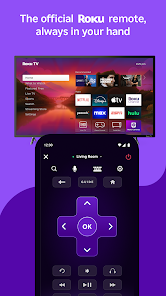
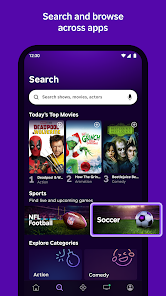
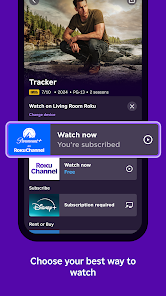
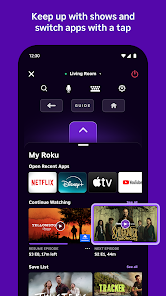
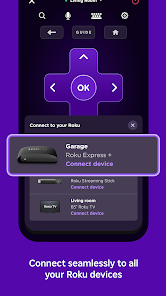
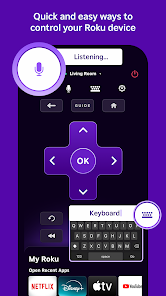
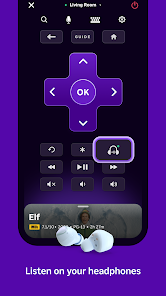
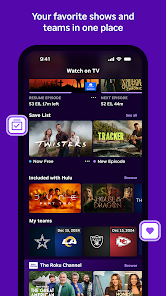
The "Remote Control for Roku TV" app offers a variety of features designed to enhance your streaming experience. One of its primary functions is to provide a virtual remote control that mimics the physical Roku remote, allowing users to navigate their Roku TV effortlessly. The app includes all the essential buttons, such as power, volume, and channel controls, ensuring that you have complete control over your viewing experience.
Additionally, the app supports voice commands, enabling users to search for content or control playback hands-free. This feature is particularly useful for those who prefer a more convenient way to interact with their TV. The app also allows users to create a personalized channel list, making it easier to access favorite shows and movies quickly. Furthermore, it includes a keyboard for text input, which simplifies searching for titles or entering passwords. Overall, the "Remote Control for Roku TV" app combines functionality and ease of use, making it a valuable tool for Roku users.
Using the "Remote Control for Roku TV" app is straightforward and user-friendly. First, download the app from your device's app store and install it. Once installed, ensure that your smartphone or tablet is connected to the same Wi-Fi network as your Roku TV. Open the app, and it will automatically detect your Roku device. Select your Roku TV from the list of available devices to establish a connection.
After connecting, you will see a virtual remote interface on your screen. You can use the directional pad to navigate through menus, select channels, and adjust settings. To utilize voice commands, simply tap the microphone icon and speak your request. For text input, tap the keyboard icon to enter search terms or passwords easily. The app also allows you to access your favorite channels quickly, making it a convenient tool for managing your Roku TV experience. With these simple steps, you can enjoy seamless control over your streaming content.
The "Remote Control for Roku TV" app comes with several advantages that enhance the user experience. One of the main pros is its convenience; users can control their Roku TV from anywhere within the Wi-Fi range, eliminating the need to search for a physical remote. The app's voice command feature is another significant benefit, allowing for hands-free operation and quick content searches. Additionally, the personalized channel list and keyboard input streamline navigation, making it easier to find and access favorite shows.
However, there are some drawbacks to consider. One potential con is that the app requires a stable Wi-Fi connection; if the network is weak or unstable, it may lead to connectivity issues. Some users may also find the app's interface less intuitive compared to a physical remote, especially for those who are not tech-savvy. Furthermore, battery consumption can be a concern, as using the app may drain your device's battery faster than usual. Overall, while the app offers many benefits, users should weigh these pros and cons based on their individual needs and preferences.

 Easily navigate channels and apps with a user-friendly interface. Control your Roku TV from anywhere in the room without interruptions. Access voice control features for hands-free operation and convenience. Quickly launch favorite streaming services with dedicated shortcut buttons. Enjoy a comfortable viewing experience without getting up from your seat.
 Limited range can restrict viewing options in larger spaces Frequent battery replacements can be inconvenient Small buttons may be difficult for some users to navigate easily
  Google Play
  App Store

This is by far the best roku remote app. BY FAR. I can't give it 5 stars though, because it often wont open. I have to uninstall and reinstall like twice a week. It always works for a couple days, then boom... nothing. I've tried ALL the other apps but they're complete garbage, if you could fix whatever problem causes this, that would be great, but it's totally not a deal breaker, as its the ONLY app of its kind that works at all.
App works well with my TV. I usually watch the TV daily with headphones so I don't disturb my wife. I have to route my headphones through the phone app instead of the TV as there is no direct Bluetooth option. The only thing I HATE, if I'm listening to the TV with my headphones and have to pause my show to do something (bathroom, take dog out, etc.), any alert that comes in my phone unpauses it. This is very annoying and I always have to rewind. Please fix this automatic unpausing. Thank You!
I love the fact that I can use the Roku remote app on my phone to control all of my Roku TVs. It works well for the most part. What I don't like is the new center area where the arrows that make the cursor move up and down and left and right are gone and now there is a big purple block that I have to tap at the top, bottom, on the left side or the right side of it to move the cursor. It's not as easy to hit the correct area as it was when there was an actual arrow that showed where to tap.
Changing my review to say the app works much better now. Went from not working at all to working consistently. only took them a long while lol. Im very thankful for it (when it's working properly) because evidently my household can keep track of a single remote. I can't even find the remote I just bought. It's still in the box🤦♀️🤷♀️. So I, and other family members can use the app as a remote when needed! Thank you roku😘
useless at worst, unoptimal at best. I tried connecting to my TV and it didn't show up. Then Itried to do it manually by IP address—nothing. It took 20-30 minutes of restarting my phone and my TV, unpliggimg my router, reconnecting everything, then searching for devices again. eventually it worked for a while, but had a couple seconds of latency for every input. then it disconnected and I couldn't find my device again. I spent more time trying to use the app than actually using it.
Review Source: Google Play store public user reviews.
Yes, users can submit suggestions or feedback through the app’s support section or via the developer's official contact channels.
The app may collect certain usage data for improving the service, but it typically does not collect personally identifiable information without user consent.
No, the app requires an active internet connection to control your Roku device, as it communicates over Wi-Fi.
You can cancel your subscription through your app store settings or within the app's account management section, depending on your platform.
The subscription cost varies based on the chosen plan, but details are available within the app for user convenience.
No, account management must be done through the Roku website or mobile app, not via the remote.
To activate your Roku account, go to the Roku website, log in, and follow the prompts to enter the activation code displayed on your TV.
You can contact Roku customer service via their website or by calling their support line for immediate assistance with your remote.
You can reach Roku customer service through their official website or by calling their support number listed in the app.
If you can’t remember your customer number, log in to your Roku account online to find it, or contact customer service for help.
- Minor bug fixes.